
Colemak-DH on a 40% Split
From my understanding, a lot of people are drawn to Colemak (and the many variations upon it) for its ergonomic benefits as a preventative measure for some wrist-trouble, or something like that. I do experience some minor shoulder pain (on the left side), but I do not find it to be a make-or-break issue for my productivity. And to be completely honest, I have no complaints with QWERTY and I can touch-type just fine; so this is a rather poor advertisement for adopting any new keyboard layouts. People often ask: “who even uses Colemak anyways?” and the answer is almost always “not anybody who actually needs to,” and that includes me.
Why did I switch? Because I wanted to challenge myself and use a weird peripheral. Is that a good reason? For me, yes, it’s valid enough (LOL).
I switched to Colemak-DH in the spring. The first month took me to roughly 50 WPM, which was an unpleasant start, yet I kept pushing. Now, three or four months on I sit at ~90 to ~100. My QWERTY is 120. I am still measurably slower on this keyboard than I am on an ordinary one. But I have no intention of going back. I’ll explain why shortly.
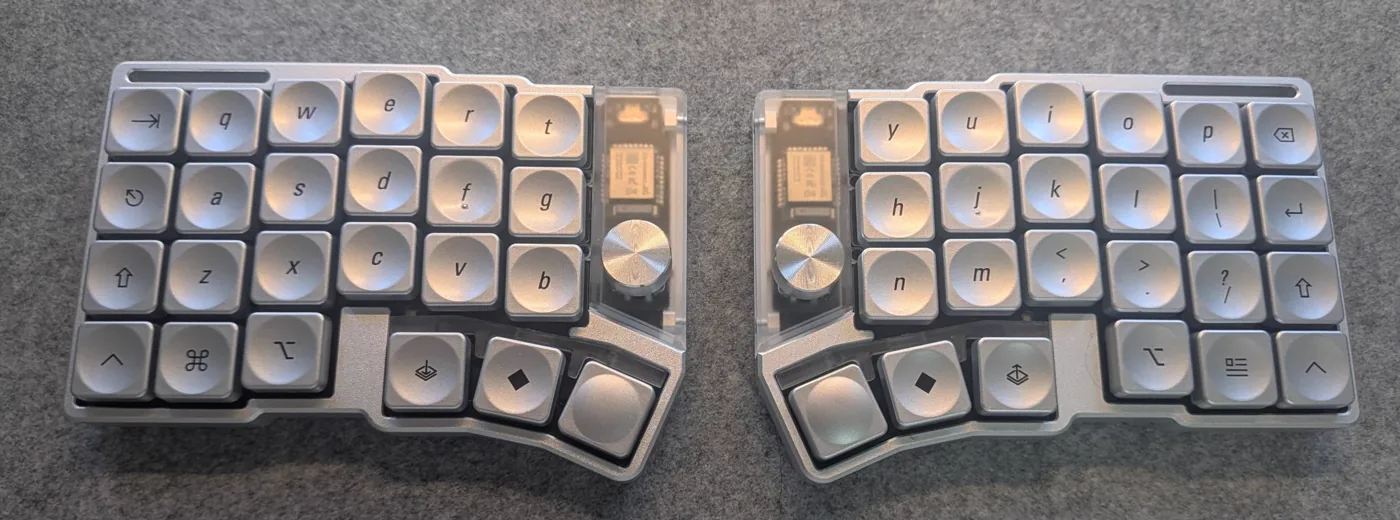
This whole process was kicked off by a purchase: I bought a Cornix LP from JezailFunder (a pretty silver-cased 40% wireless split @ ¥29,500) and then took the opportunity to relearn how to type along with the new column-staggered hand placement. Loving the board also brought a love for the Colemak-DH (as I used exclusively with the board). The process of going from 104 keys to 48 also forced me to consider how to most effectively design a keymap tailored to my needs.
Why Colemak-DH
Below are (3) different heatmaps for the unique keypress distributions of QWERTY, Colemak, and Colemak-DH:
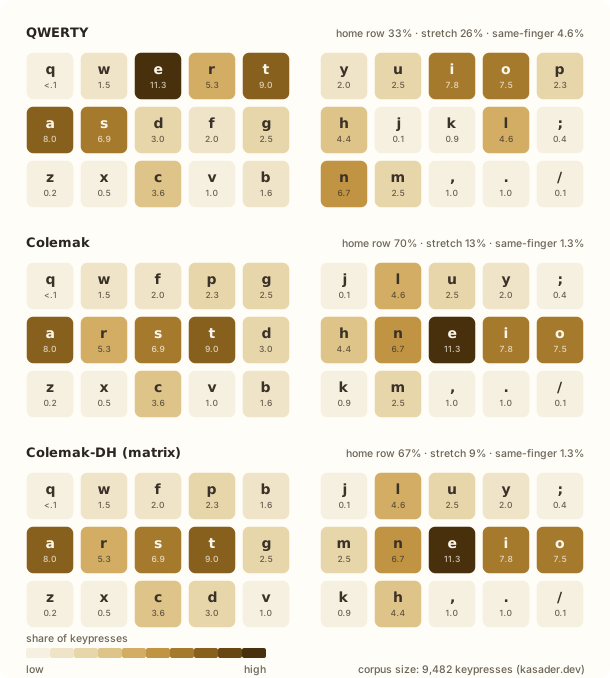
The mod has two different forms depending on whether your rows are staggered (typical keyboard) or stacked in even columns. A column-staggered keyboard like the Cornix uses the matrix version, which is pictured above (quick aside: I know it is confusing that Colemak-DH is a mod of Colemak and there is a matrix/non-matrix variation of the mod, but bear with me).
Looking at the image, QWERTY leaves ~1/3 of English keypresses on the home-row. Colemak and Colemak-DH are at ~2/3. Same-finger bigrams (when one finger is asked to hit two different keys in a row) fall from ~4.6% to ~1.3%. QWERTY has a lot of same-finger bigrams in common typing, for example, any time you type -ED your left-middle finger has to hop from E on the top-row down to D on the home-row. Colemak (and its derivatives) are designed specifically to do away with this as much as possible, and thus those two letters are on opposite hands.
DH-Mod Changes
On both measures of home-row and same-finger bigrams, Colemak-DH is actually slightly worse compared to stock Colemak. However, what you trade for is far fewer “stretch” key presses.
D and H are frequent letters, and (strangely) stock Colemak has them in the two inner-columns where your index fingers need to splay inward to get them. Mod-DH swaps them with G and M (both much rarer), so you can just curl your fingers down slightly instead. In general, this is the layout most people adopt over stock Colemak on specifically ortholinear/column-staggered boards, because the key-column alignment already cuts the total finger travel-distance from home-to-bottom row VS index stretch keys.
The typing that needs a sideways reach drops from ~13% to ~9%. But, that’s pretty much it. Again, it is only worth anything on a board that can actually take advantage of the alignment travel-distance.
The only thing that bothered me with Colemak though is that my right pinky went from ~2.7% to ~7.9% (nearly triple) of keypresses, because O and ; both live in its column now. But I cut down on the top-row movement by placing ; onto a separate symbol layer (which I will mention in more detail later).
Key Rolling
Rolling is a phenomenon you cannot explain without first experiencing it firsthand (try listening for the distinct “rolling” sounds in this person’s typing). It is one of the most satisfying aspects of the Colemak layout. It is just the stacking of bigrams and trigrams (which Colemak is heavily optimized for) in typing.
For example: ST is left-middle & left-index, two adjacent fingers on two adjacent keys, so when you type it, the two presses come out as one distinct “rolling” motion. NE is the same on the right hand. ARST and NEIO are the whole home-row under four fingers in order. Typing starts feeling like the keys are falling over like a sequence of dominos. It is really an indescribable kind of pleasure (raaahhhhh).
Learning Colemak-DH
The first month is quite rough, and being warned about it in advance does not help even a little. You lose the ability to think and type at the same time, because the part of your brain that used to handle spelling has been dragged into finding the letters in the big mental space where the keymap now lives. Hell.
Then, ~50 WPM at a month is roughly the point where the layout stopped slowing me down and I was back to being the slow part myself, which was the only threshold I actually cared about. Everything since has come without much effort on my part: despite not running through daily typing drills the number keeps drifting up on its own.
Maintaining QWERTY
I have been asked if I ended up losing QWERTY in this transition, and the answer is that I did not. Losing QWERTY is too high of a cost to bother with this at all if that were actually the trade being made; nobody wants to permanently handicap themselves for what could end up being almost no benefit, but I digress.
Thankfully, I did not lose any of my WPM in QWERTY compared to when I started; and I suppose that this is due to an active/intentional logical separation that I maintain between the physical keyboard styles and the key layouts that I use with them. I’ve written my Cornix keymap into the board’s flash memory (see: Vial.rocks), so there is no required config and/or per-machine setup.
Keymap Configuration
I do not switch to Colemak-DH as a keypress mapping that I enable in my OS. I have hard configured my Cornix keymap to the Colemak-DH layout, and therefore it’s not really “portable” (other than physically, heh). It’s not really a problem though because I want to use my layout with the hardware.
Besides, there are problems with doing this in your OS since it’s not super standard. For example, macOS ships with Colemak pre-installed but not Colemak-DH, so doing this in software would mean maintaining a custom layout on every machine I touch and then, like, hastily swapping out the keymap configuration to QWERTY and/or like stumbling around in the settings with my cursor like a big klutz if anybody happened to ask to use my machine (I also maintain a toggleable layer on my Cornix which provides QWERTY input for anyone who needs it).
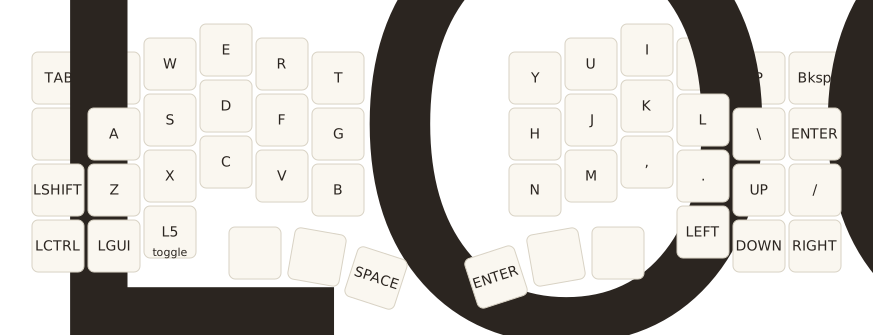
Thus, really, keeping it within the hardware is less work by a massive margin.
Knowing Several Keyboard Layouts
“People have reported success in […] maintaining both layouts. I’ve heard of people using psychological hacks to assist with the context switching, for example, using Qwerty on a traditional row-staggered board, and Colemak(-DH) exclusively on an ortholinear. Or, using one layout at home and one at work.”
If anyone is worried about the confusion that might come along with knowing multiple layouts, listen to this: my hands seem to mentally compartmentalize each (QWERTY/Colemak-DH) with the keyboard rather than under one slot marked “typing” (it is very similar to knowing multiple languages. If someone spoke to you in French, you wouldn’t respond in Chinese). I have never once had to think about the changeover, and maybe you won’t need to either.
Using a Split Keyboard
Again, I picked up a Cornix LP, a 40% split in an aluminium case with Kailh Choc V2 switches. It also comes with rotary encoders on either side (for some reason). Additionally it runs over Bluetooth for up to (3) devices and has built-in batteries. It’s really a shockingly good keyboard for the price and I recommend it to anyone (but, heads-up, board is pretty much never in stock. Don’t expect to be able to buy it even if you click; I would instead follow the official Twitter to see when they are doing a group buy).
It ships with LAK-PBT caps which are perfectly fine (if not a little tacky with the colours), but I went ahead and replaced them with a set of LCK Liquid Silver. They have a nice dished centre which is more comfy for my fingers and a slick metallic finish. It goes without saying, but they look amazing with the silver case.
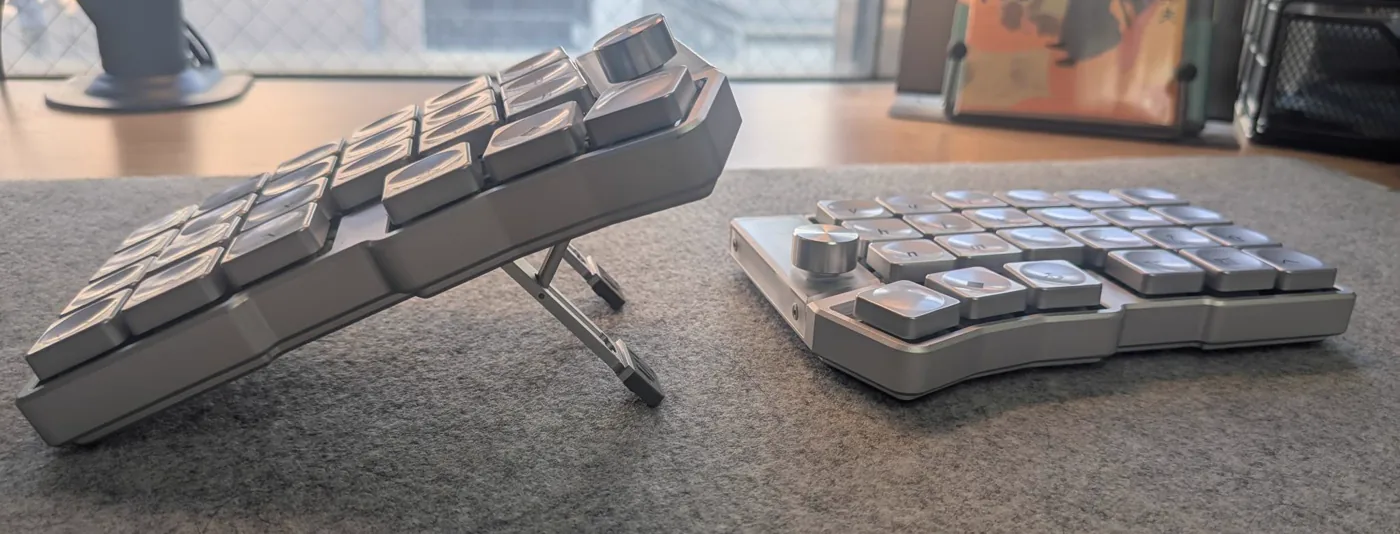
I think the top sleeper pick of Cornix features, though, are the folding tenting legs built into the case. There are two machined struts under each half with four notched positions (6°, 12°, 18°, and 24°). Usually having a tenting feature for your board is literally some goofy 3D print that you have to glue/suction onto your frame (and then you’re usually kinda stuck at that angle forever unless you print something else). So, being able to change so easily has been great to get a sense of what I prefer for tenting angles (I am personally a 6°/12° guy).
Custom Mod Layers
Forty-eight keys is not enough keys (if you noticed, there is no number/symbol row, arrow keys, function keys, etc). Therefore everything has to go somewhere you decided to put it.
To update the keymap, Cornix uses Vial, which is a QMK-fork with a GUI that writes to the keyboard flash memory while it is running. There is also a very handy web version that needs nothing to run (other than a Chromium-based browser). As soon as you map a key in your targeted layer it gets updated, which makes it very useful for iterative testing; and there will be a lot of that. It usually takes a day or two to figure out if a key placement really holds or not, so you’ll probably spend a lot of time here.
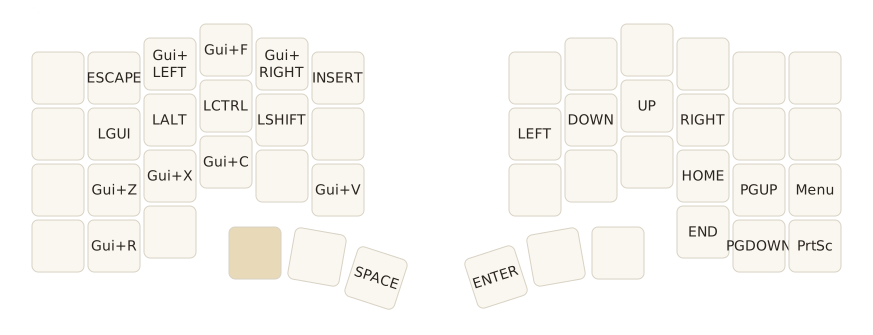
h,j,k,l) become the arrow keys, and shortcuts are placed on the left hand.Home-Row Mods
I’ve also hopped in on using home-row mods (I feel that home-row mod users online love to proselytize about it, so I’ll keep it short here). For those unfamiliar, the home-row keys become tap for the letter, hold for a modifier. For example, A R S T and N E I O are also GUI (◆), Alt (⎇), Ctrl (⎈) and Shift (⇧), mirrored outward from the index fingers. There are lots of opinions on which home-row keys should be mapped to where, but I use GACS (◆⎇⎈⇧).
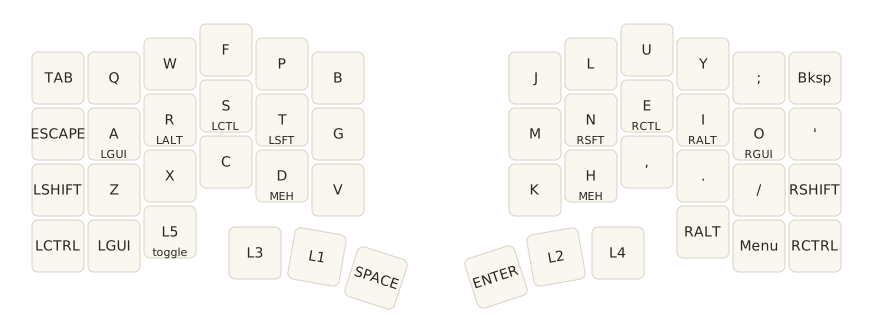
QMK calls this a mod-tap (and Vial exposes this in the QMK Settings/Tap-Hold menu). When setting these up there is a lot that can go wrong as there are a lot of levers. This has to do with the timing you set up for length of your tapping term (i.e, how long a hold has to be before it counts as a hold), and this is without considering what happens when you roll from a modifier into a letter faster than the firmware expected per your settings (you’ll end up pressing a bunch of random key shortcuts and kill your active window panes or something bad). But, there is no need to work any of this out from scratch. Just read Precondition’s guide to home row mods, which is the de facto reference; reading it first will save you a lot of wasted time, so please, read the whole thing if you decide to use them. You’ll be suffering if you don’t. Exhibit: A, B, & C.
Combos & Chords
Vial calls chords combos: press N keys at the same time, get out whatever mapping you set. An example of one I’ve set is H and , for backspace. If you pick a good combo they can make typing so much nicer/efficient in terms of finger spread. Like in the example above, because H and , sit next to each other in Colemak-DH (right-side bottom row under index & middle fingers) you can press that as a single motion (because it’s a chord, you know, like a piano).
I’ve got a second chord/combo set as well, for caps-lock (which is Tab and Q) since I do not have that key mapped on my base layer. It’s, well, fine, but I don’t use it too much. If anyone has any other suggestions chord/combos that you find useful please let me know. I would like to set more, but I find it a bit difficult to promote (?) something to a base layer combo instead of just putting on a standalone key on a separate layer.
Using a Trackball Mouse
If you think about it for a second, a split keyboard means you get a massive hole where once was the middle of your keyboard. That is now the home for my trackball (Kensington SlimBlade).
I feel like not enough people do this, and I don’t understand why. On a normal keyboard the mouse lives so far away from the keyboard and your right arm is forced to move back and forth loads. With the halves pushed apart the trackball sits inside the keyboard (like the beloved ThinkPad red-nipple).
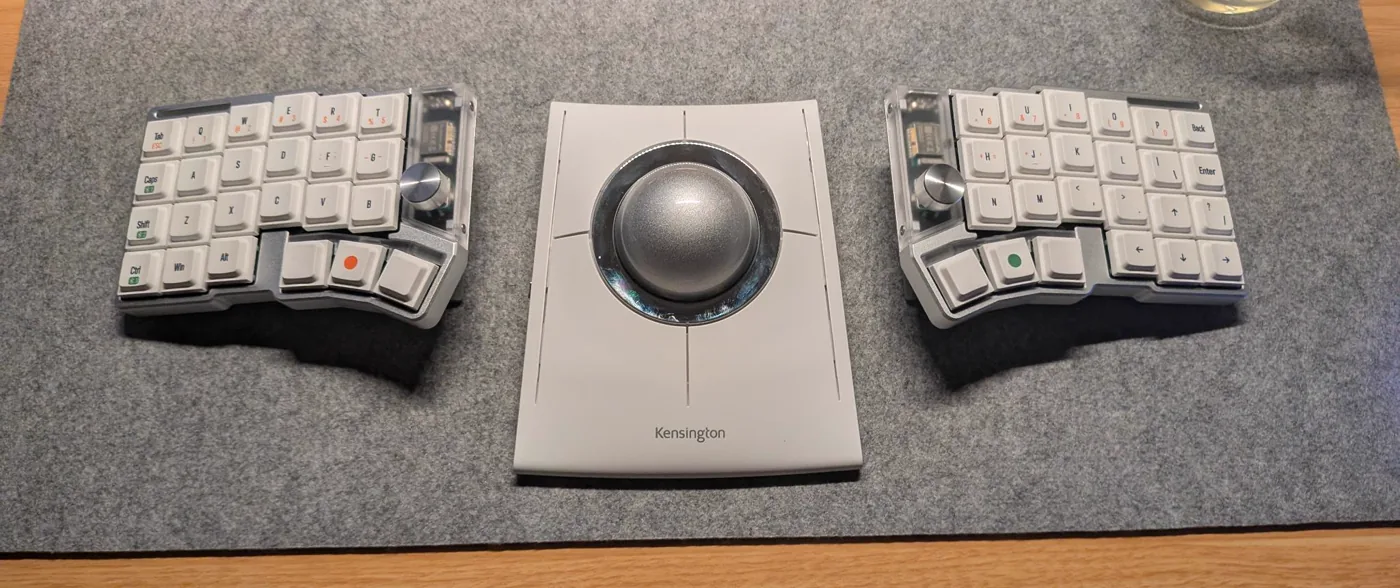
By the way, the SlimBlade Pro trackball isn’t moulded as a right-handed peripheral, so it’s perfect for ambidextrous use. I use it with either hand more or less as I please, which spreads a load that used to be entirely my right wrist’s; and you know what, I never really considered how strange it truly is that a mouse is exclusive to the right-hand. They are quite literally moulded to the right-hand by default, nearly as a given. Tangent aside: I just bought it because it was cool-looking/fit in the hole/matched the aluminium-finish on the board (LOL). I later found lots of additional benefits from having used it but I will save that talk for another day, maybe. This YouTube video pretty cleanly summarizes my thoughts though (Japanese language warning).
Resources Worth Bookmarking
- Colemak Mod-DH: official mod write-up. It covers both the matrix/angle variants and explains some of the history behind why.
- A guide to home row mods: Again, if you really want to use home-row mods RTFM before you configure anything. I am very serious.
- keybr: teaches a new layout letter by letter. This is what I would recommend for starting any new layout, or even learning to touch-type if you can’t.
- Monkeytype: for measuring your WPM (I love MonkeyType).
Takeaway
I am unfortunately still ~20 WPM slower on the Cornix than I am on a QWERTY keyboard, but I don’t mind. I think I will get up to speed eventually, especially if I put in a little bit more targeted practice. Colemak-DH is nice enough with its rolls that typing has become a little Zen activity that I do for fun now.
I guess it is kind of like learning a new instrument. You just build up muscle-memory, learn some weird tricks and, in this case, ergonomic theory/hacks. I enjoyed the process, but I can’t say that it’s for everyone. I think for next time I will just learn an actual instrument though, or something comparable; I feel a keyboard layout is just a little bit too private (“I learned this keyboard layout and all I got was this lousy article”)! In short: I love my Cornix. Thanks.